.png)
Applications
Overview
The Applications section in Onboard+ allows users to manage and review applicant submissions throughout the onboarding process. Users can view application details, review submitted information, upload and manage documents, complete internal-only fields, verify sections, and take action on applications.
Applications are tied directly to forms and represent completed or in-progress submissions from applicants. Internal users can continue working on an application after submission, ensuring all required information is collected and verified before approval.
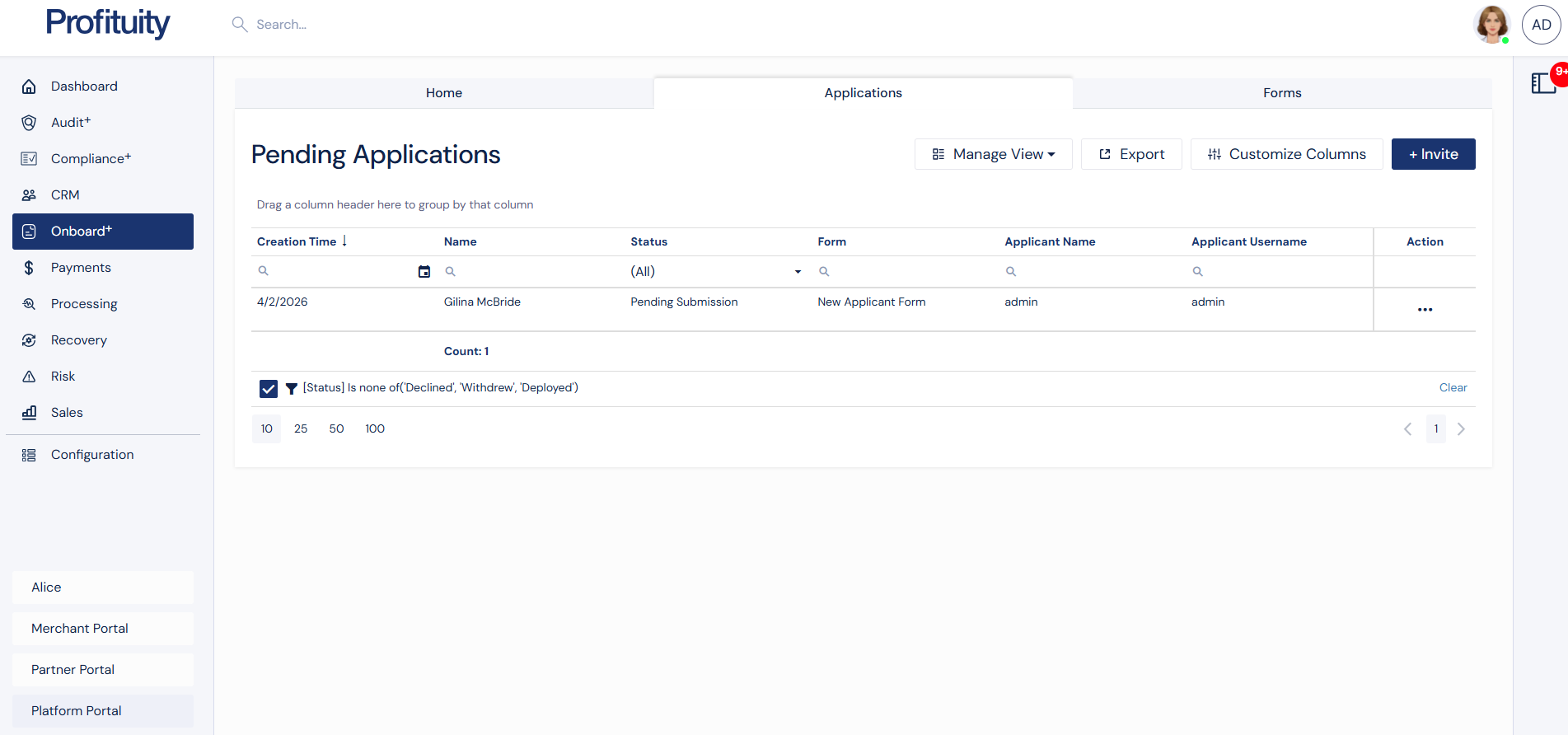
Screenshot: Applications
Accessing the Applications Section
The Applications section is available within the Onboard+ module. This area displays all submitted applications and allows users to review, edit, and manage each application.
Applications Grid
The Applications grid displays all applications and provides access to key actions.
Users can:
View application details
Open applications for editing (when permitted)
Perform actions such as Approve, Decline, or Withdraw
Editing an Application
Overview
Applications can be edited after the applicant has completed the form. This allows internal users to update information, complete internal-only sections, and finalize the application before approval.
Editing Capabilities
When editing an application, users can:
Update field values
Complete internal fields
Modify internal sections
Verify sections
Save changes
The editing experience uses the same structure as the original form but allows internal updates and validation before submission.
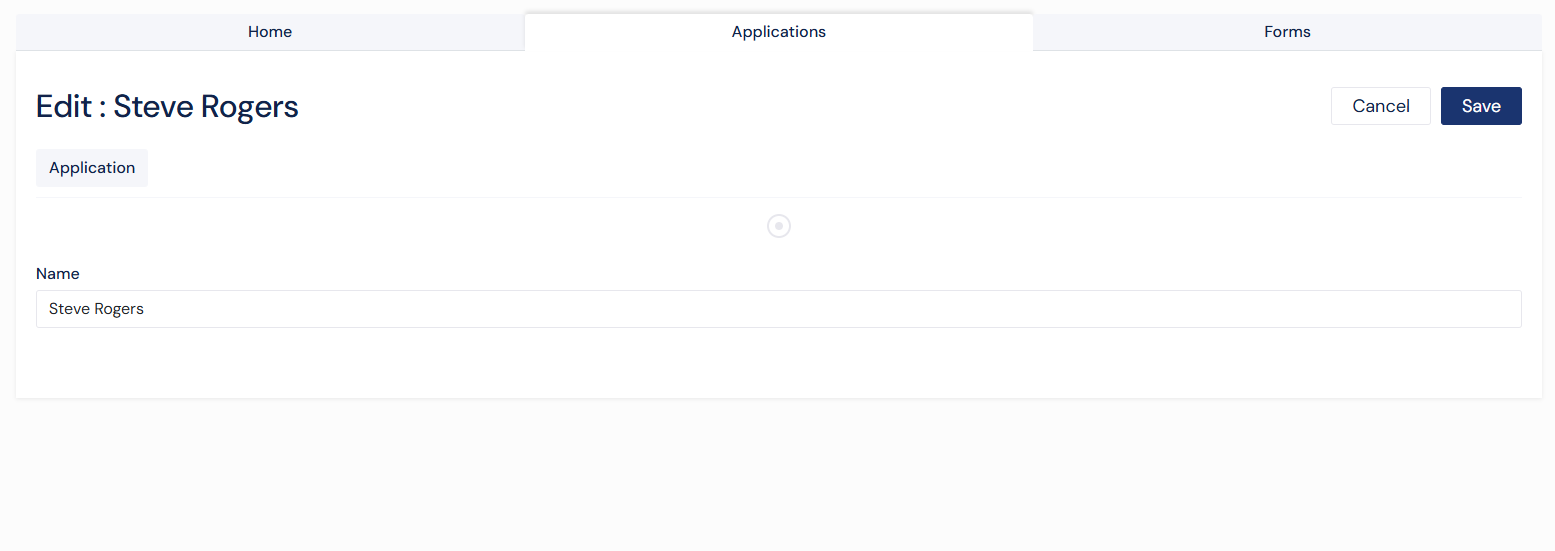
Screenshot: Edit Application
Saving Changes
When editing an application, users can save changes after making updates. Validation is performed to ensure required fields and sections are completed before saving.
Viewing an Application
Overview
The View page provides a read-only version of the application. This allows users to review all submitted data without making changes to the application.
The application form is displayed in a disabled state, showing all fields, values, and structure exactly as completed by the applicant.
Tabs
Applications are organized into multiple tabs for easy navigation:
Basic Info – Displays high-level application details such as name, status, associated form, and user information
Application – Displays the full form submission in a read-only format
Documents – Displays required and uploaded documents and allows users to upload or reject documents.
Comments – Displays and manages comments and allows users to add, edit, or delete comments
Attachments – Displays and manages uploaded attachments and allows users to add or delete attachments
Notes – Displays and manages notes and allows users to add, edit, or delete notes
Additional tabs such as Attachments, Notes, and Audit History may be accessed through the + More dropdown.
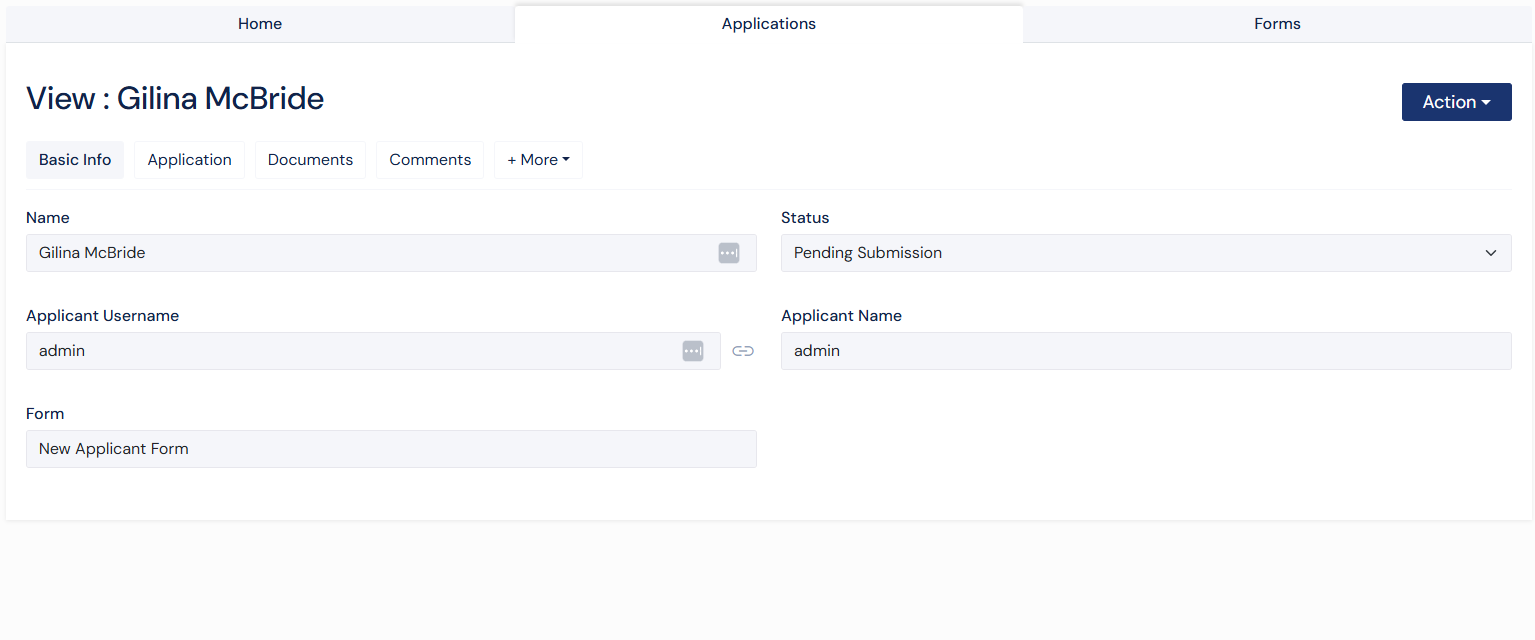
Screenshot: Application View
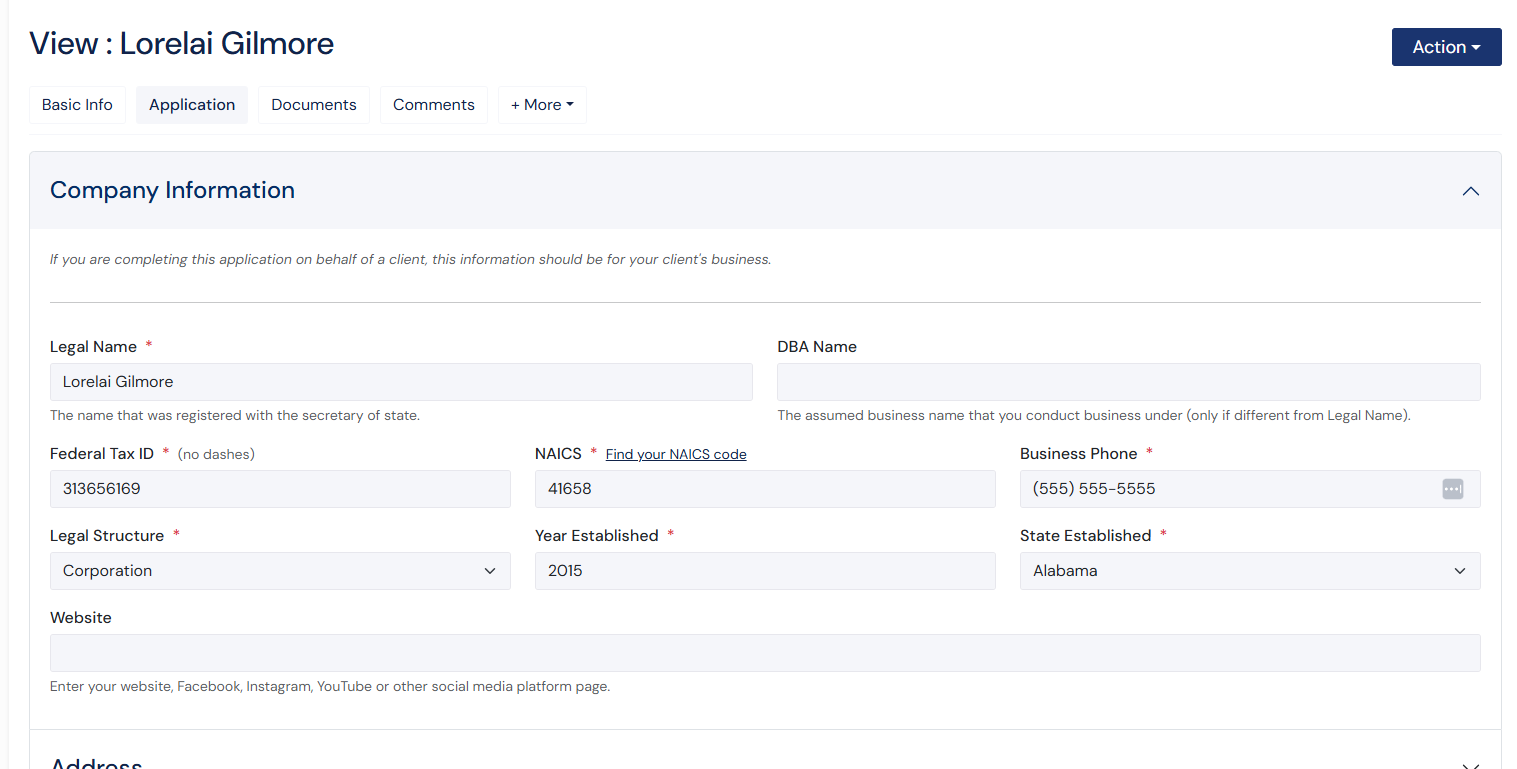
Screenshot: Application Tab
Application Sections
Applications are organized into sections based on the original form structure.
Verifiable Sections
Certain sections can be marked as verifiable. These sections include a verification toggle that allows internal users to confirm that the information has been reviewed and validated.
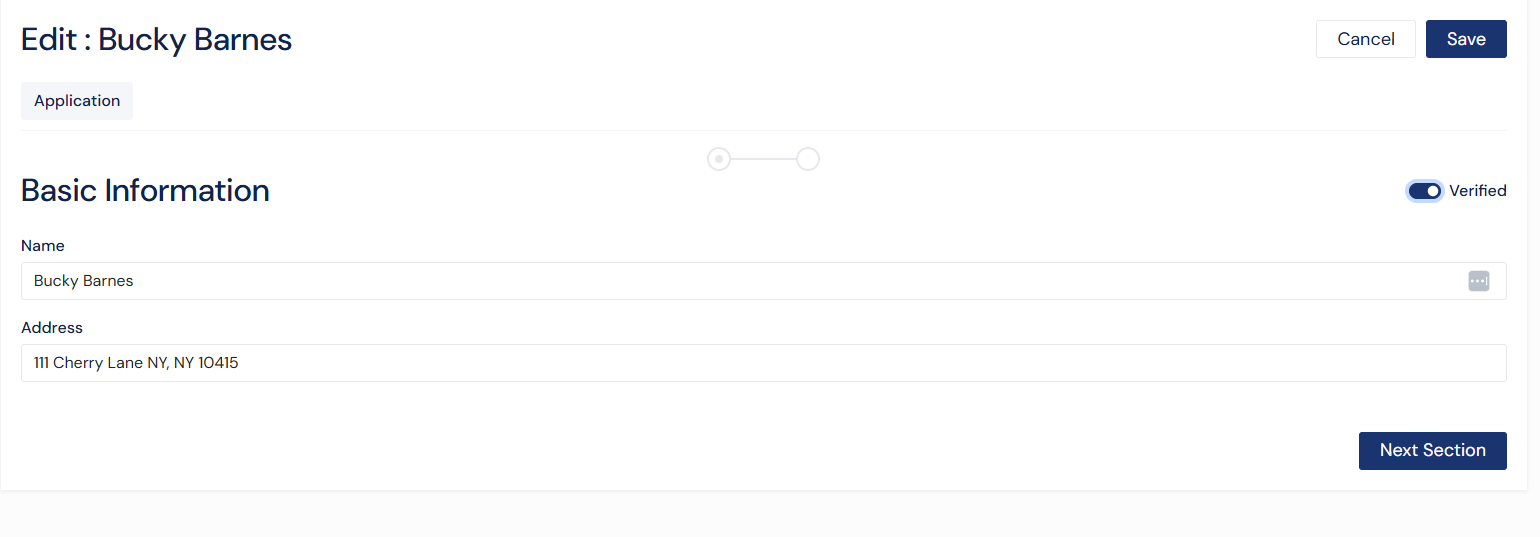
Screenshot: Verifiable Section
Internal Sections
Sections can also be designated as internal, allowing users to enter information that is not visible to the applicant.
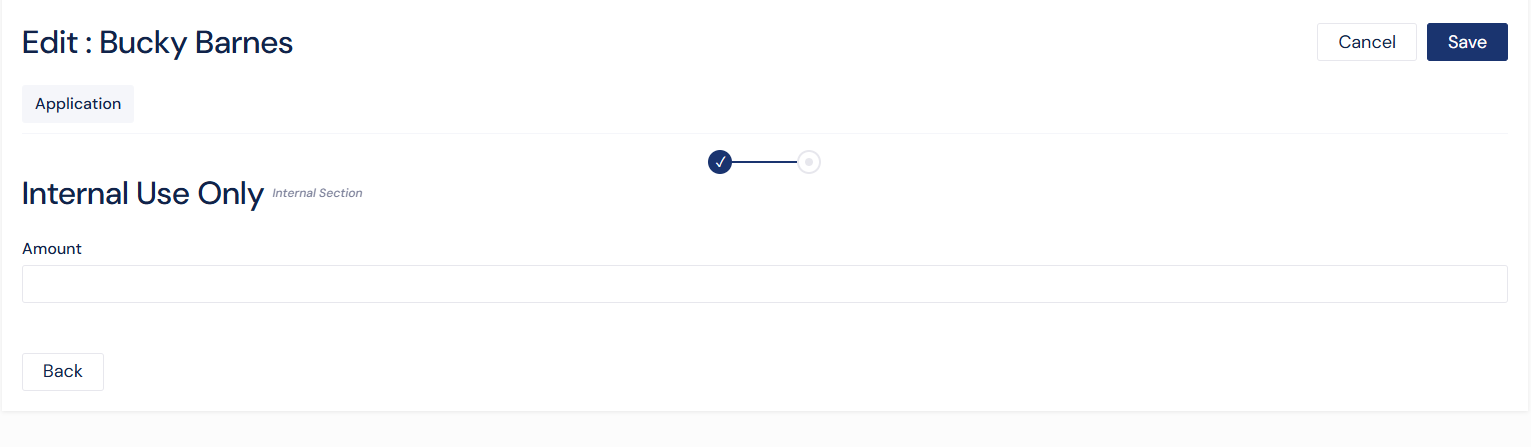
Screenshot: Internal Section
Required Documents
Overview
The Documents tab in the View Application section displays all required documents associated with the application, including both standard and internal documents.
Documents are grouped and displayed clearly, with indicators showing whether each required document has been uploaded.
Uploading Documents
Users can upload documents directly to the application using the Add New option. This opens a modal for uploading and associating documents with the application.
Rejecting Documents
Users can reject previously uploaded documents using the Reject Document option. This allows users to request updated or corrected documents from the applicant.
Managing Documents
Uploaded documents are displayed in a grid where users can:
View documents
Download documents
Delete documents
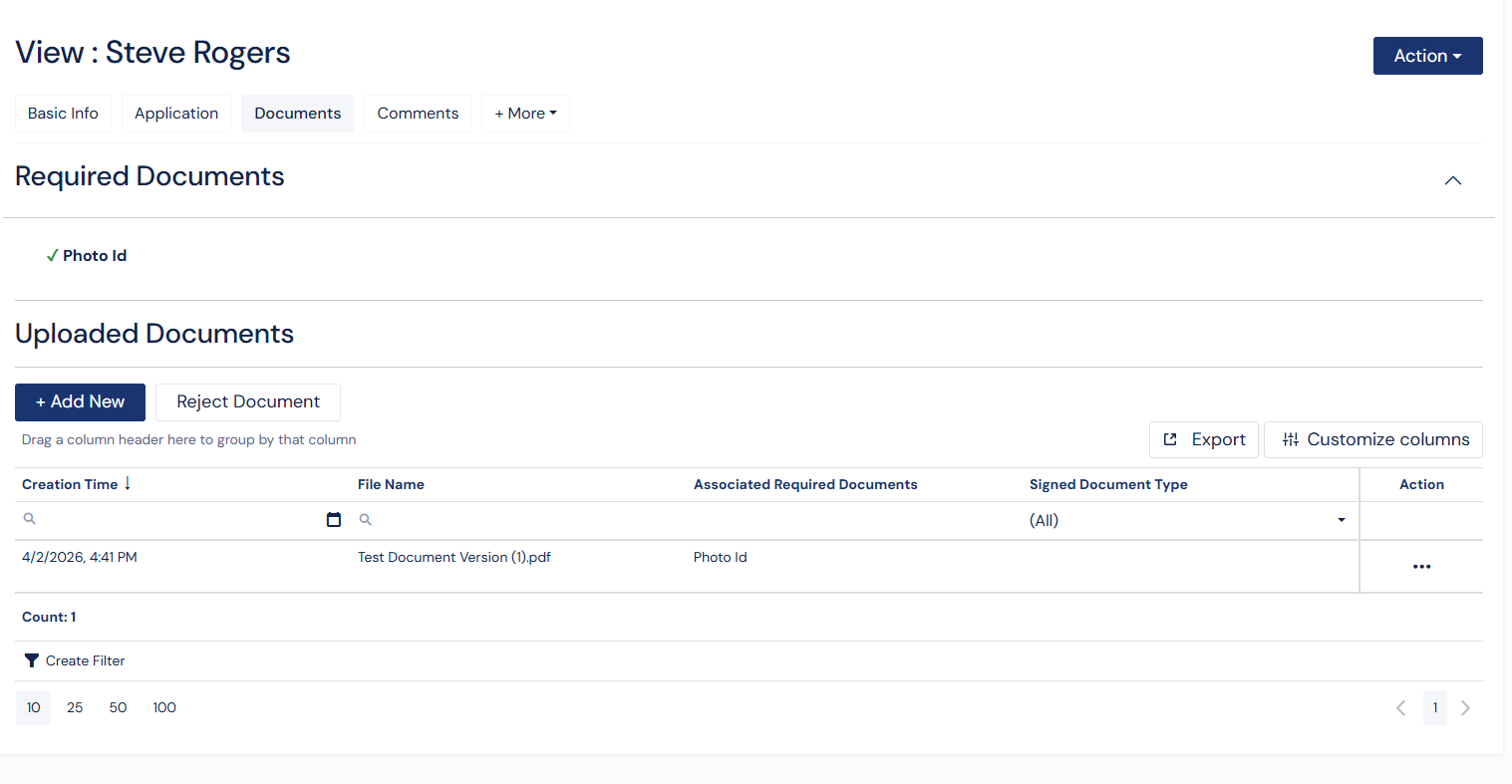
Screenshot: Documents Tab
Custom Actions
Custom actions are available from the Action dropdown and can be triggered at any time.
These actions are configured at the form level and trigger associated webhooks when executed. If a webhook is not configured, the action will be disabled.
Application Actions
Overview
Application-level actions are available from the Action dropdown and vary depending on the current application status.
Standard Actions
Users may perform the following actions:
Approve – Marks the application as approved
Decline – Marks the application as declined
Withdraw – Withdraws the application
These actions are only available in specific statuses and an application cannot be approved until all required sections are completed.
Additional actions such as undoing previous actions or deploying an application may also be available depending on status.
Inviting an Applicant
Applications can be sent directly to applicants using the Invite feature via the grid page or the actions button in View Application.
The invite process works similarly to form invites. Users enter:
Applicant Name
Form
Email Address
Email Template
After submitting the invite, the applicant receives an email with instructions to complete the application.
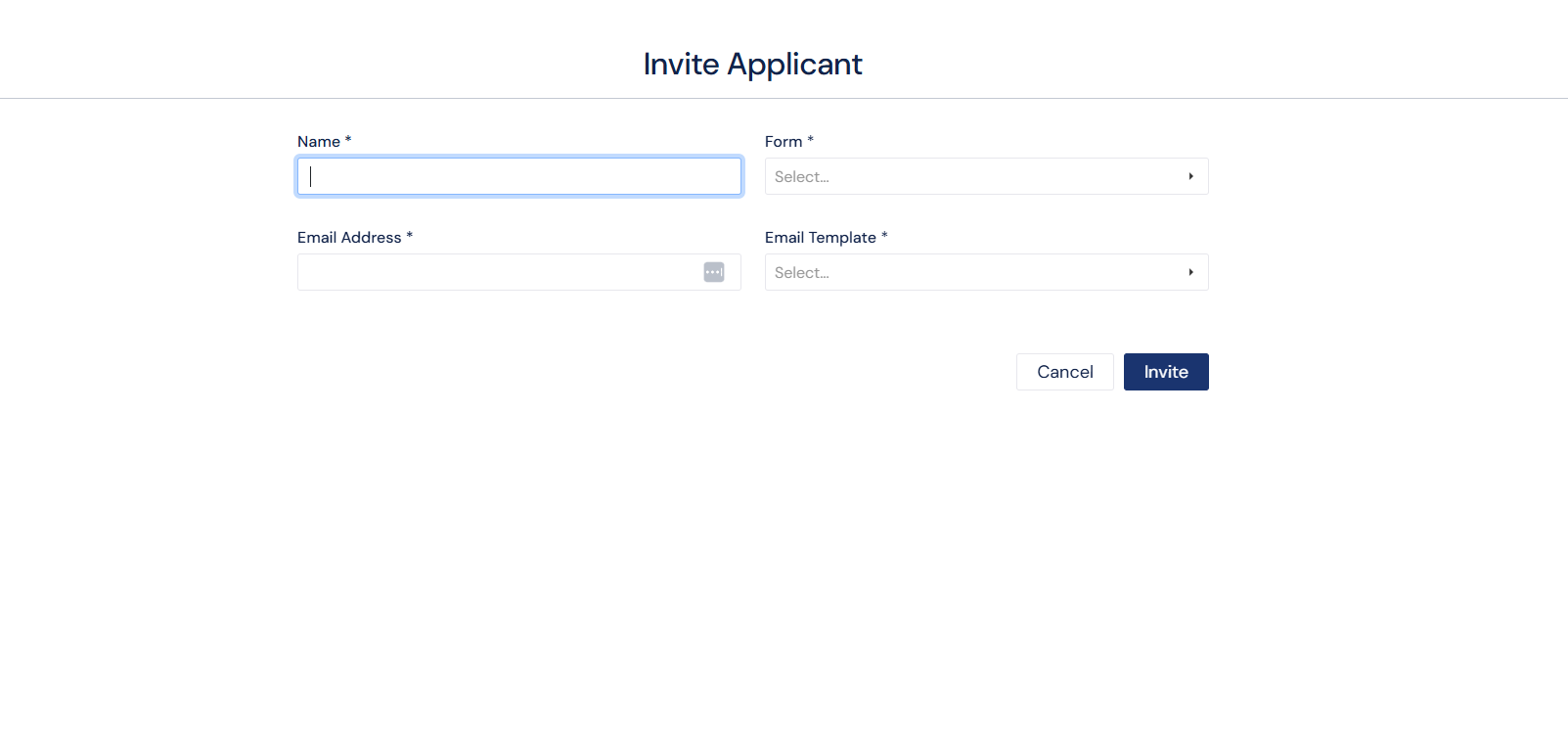
Screenshot: Invite Applicant to Application
Comments
The Comments tab allows users to add and manage comments related to the application.
Users can:
Add new comments
View existing comments
Edit comments
Comments are useful for internal communication and tracking decisions or feedback. Applicants can see the comments in the Applicant Portal.
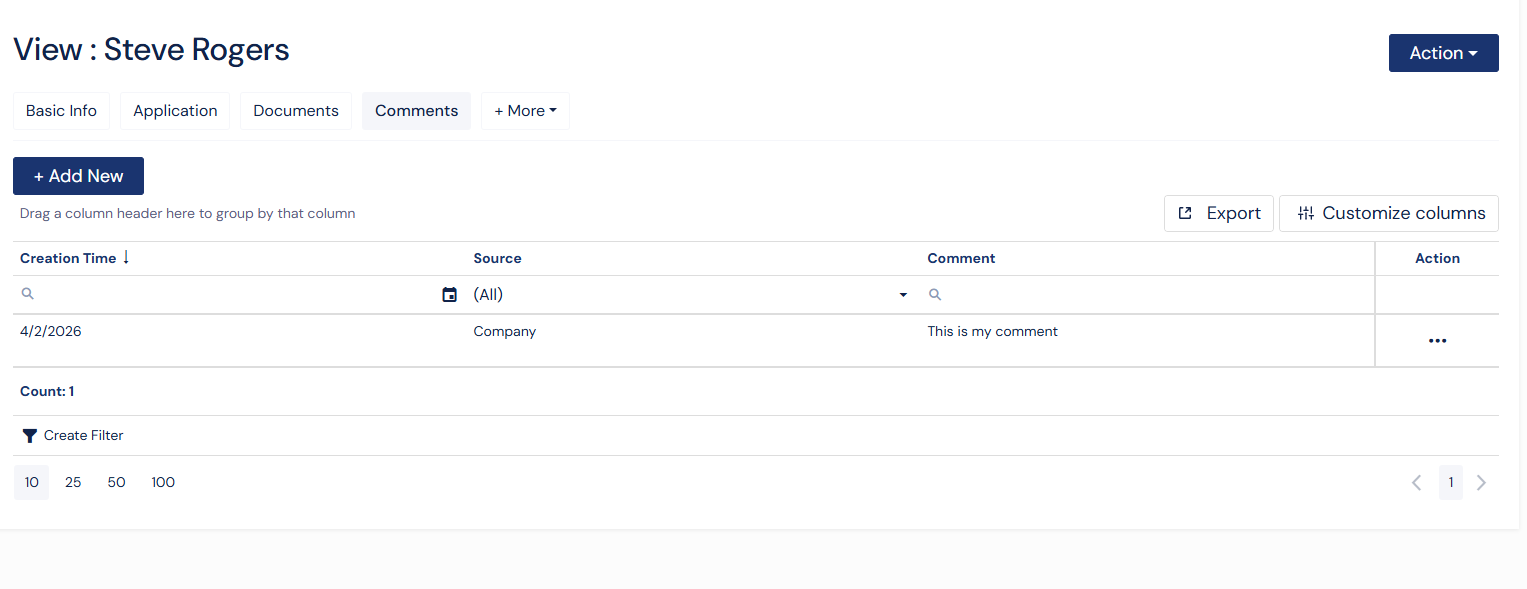
Screenshot: Notes Tab
Attachments
The Attachments tab allows users to upload and manage additional files related to the application.
Users can:
Upload attachments
View attachments
Download attachments
Delete attachments
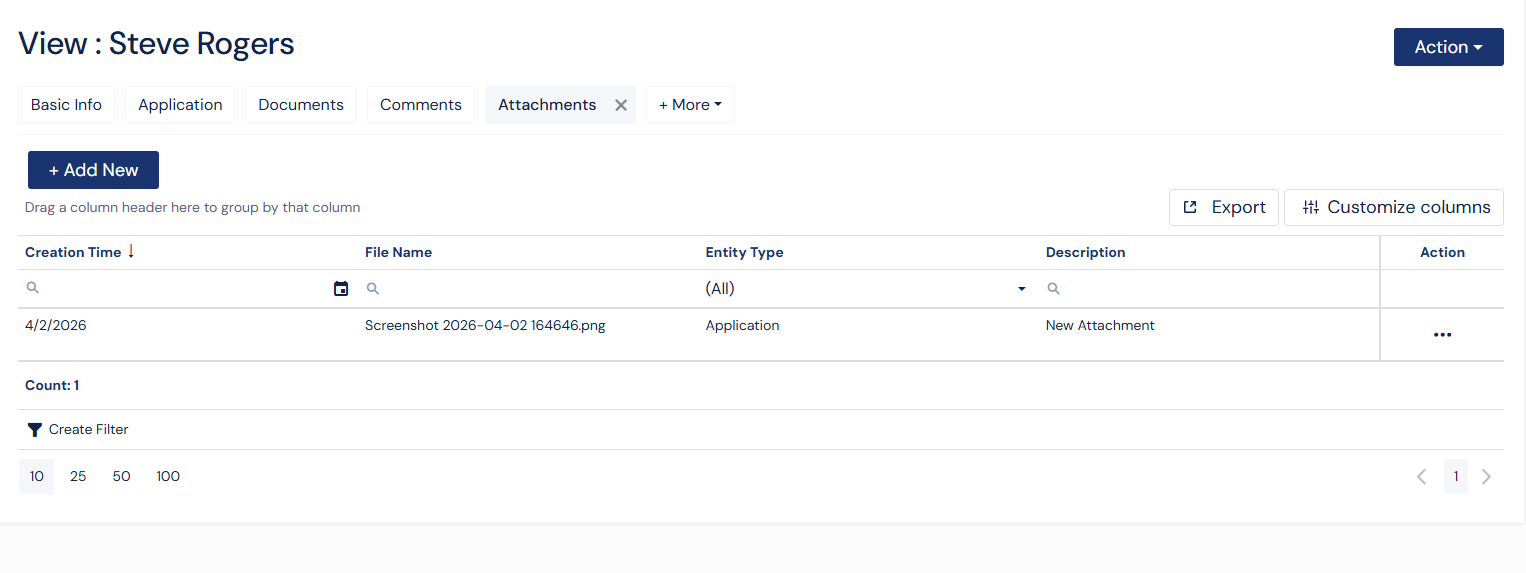
Screenshot: Attachments Tab
Notes
The Notes tab allows users to record internal notes associated with the application.
Users can:
Add notes
Edit notes
View note history
Notes are typically used for internal tracking and documentation and only visible to the Platform Portal user.
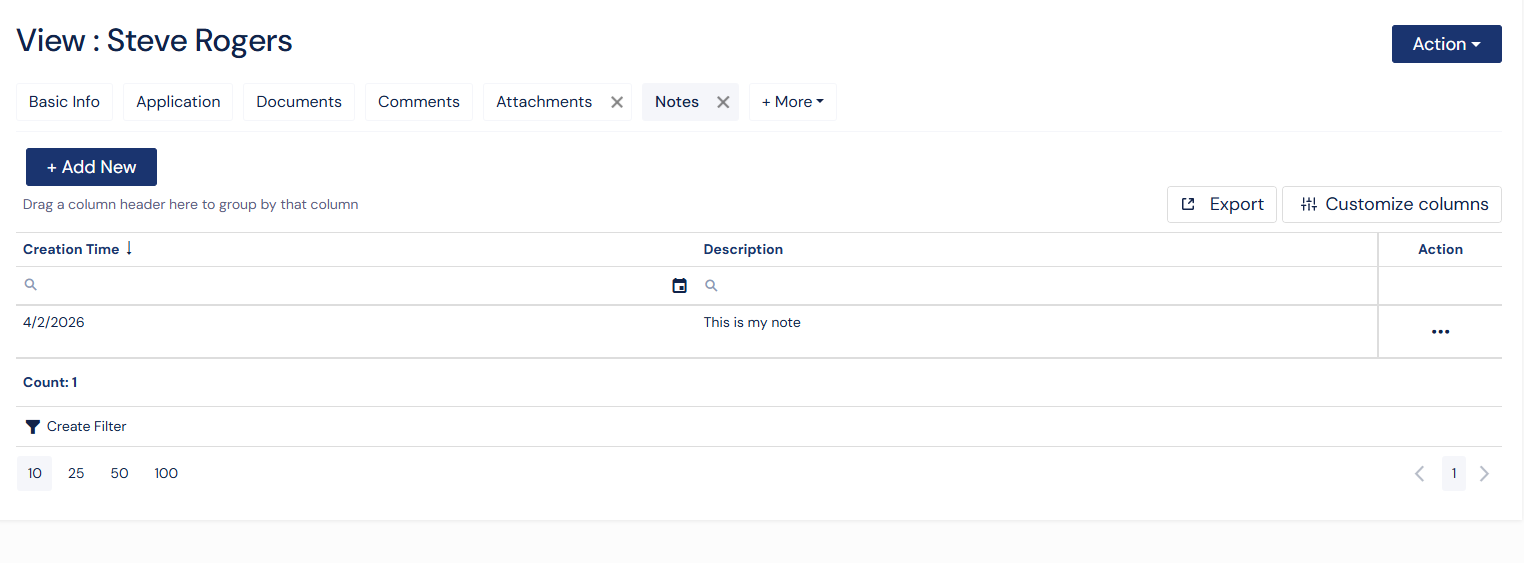
Screenshot: Notes
Best Practices
Verify all required sections before approving an application
Use comments and notes for internal communication
Ensure all required documents are uploaded and reviewed
Use internal sections to capture additional required information
Review the full application in View mode before final approval