.png)
Applicant Portal Overview
Overview
The Applicant Portal allows users to complete and manage their onboarding applications. Applicants can start a new application, complete required forms, upload documents, and track the status of their submission.
Applicants are responsible for entering their own information and completing all required steps before submission. Once submitted, the application moves into the review process for internal users.
Accessing Applications
Applicants can access their applications from the main Applications page within the Applicant Portal.
This page displays all applications associated with the user and provides access to start, continue, or view applications.
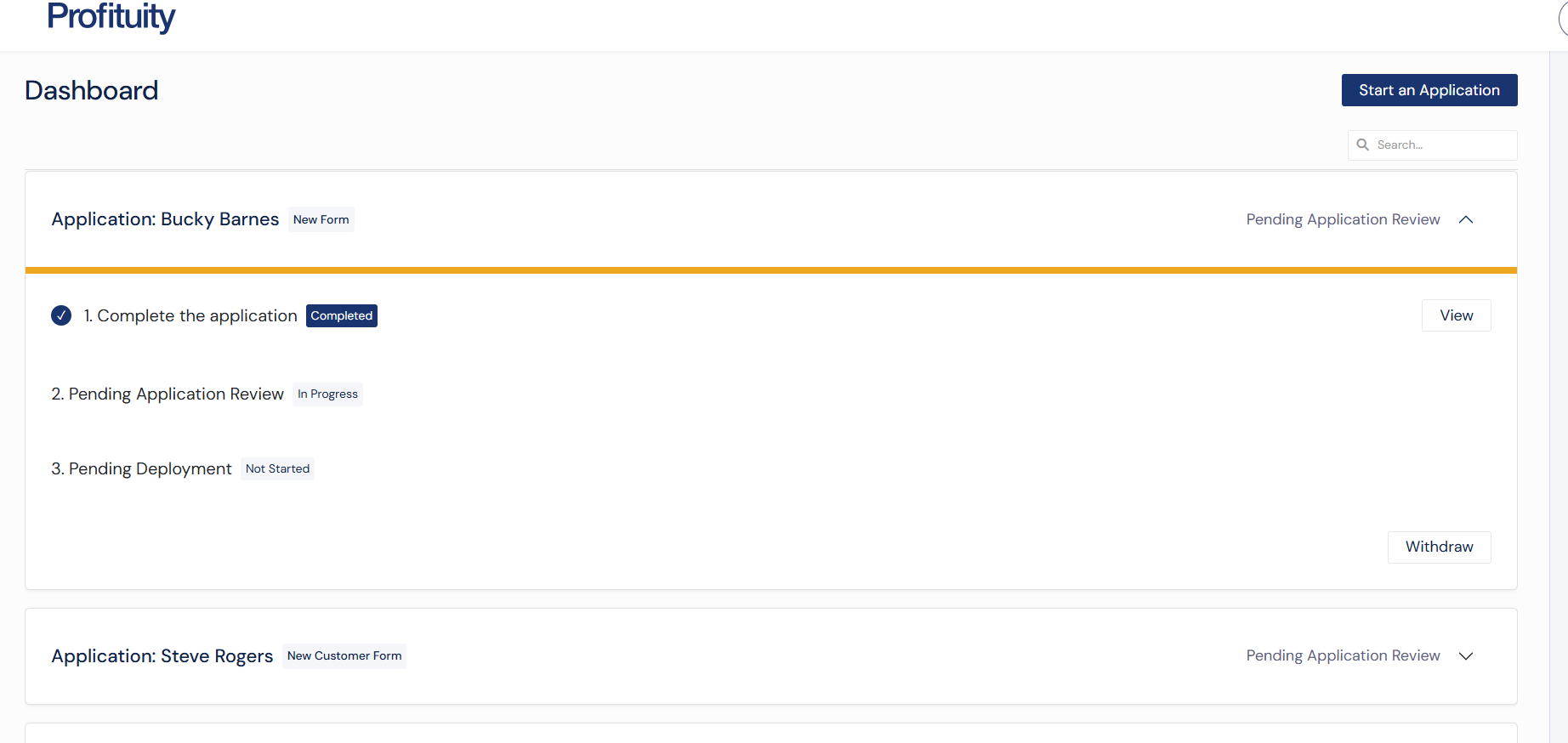
Screenshot: Applicant Portal Dashboard
Applications Dashboard
Overview
The Applications dashboard displays all applications available to the applicant. Each application includes its current status and available actions.
Starting an Application
Applicants can start an application from any form they have been invited to by selecting the blue Start an Application button at the top of the dashboard. This action opens a modal where the applicant can choose which form to begin.
Application Statuses
Applicants may see the following statuses:
Pending Submission – The application is in progress and can be edited
Pending Document Submission – The application has been submitted, but additional documents are required
Once all steps are completed, the application moves to Application Review where it will be reviewed by the owner.
Available Actions
Depending on the application status, applicants may see the following options:
Continue – Resume an in-progress application
View – Open a submitted application in read-only mode
Withdraw – Withdraw the application
Completing an Application
Filling Out the Form
Applicants complete the application by filling out all required fields within the form. The form may be organized into multiple sections.
Saving Progress
Applicants can save their progress and exit the application at any time before submission, allowing them to return later and continue where they left off. The current section must be completed and pass validation before the application can be saved and exited.
Editing an Application
While the application is in Pending Submission status, applicants can:
Edit previously entered information
Update field values
Navigate between sections
Submitting an Application
Once all required information is completed, applicants can submit the application.
After submission:
The application becomes read-only
The status changes to Pending Document Submission (if documents are required) or moves forward in the process
Applicants can no longer edit form fields
Uploading Documents
If required documents are associated with the application, applicants can upload them after submitting the application. Upon submission, the upload documents modal will automatically open, allowing users to upload documents immediately. Applicants can also choose to upload documents later through the Documents tab on the View page.
Uploading Documents
Applicants can:
Upload required documents
View previously uploaded documents
Replace documents if needed
The application remains in Pending Document Submission until all required documents are provided
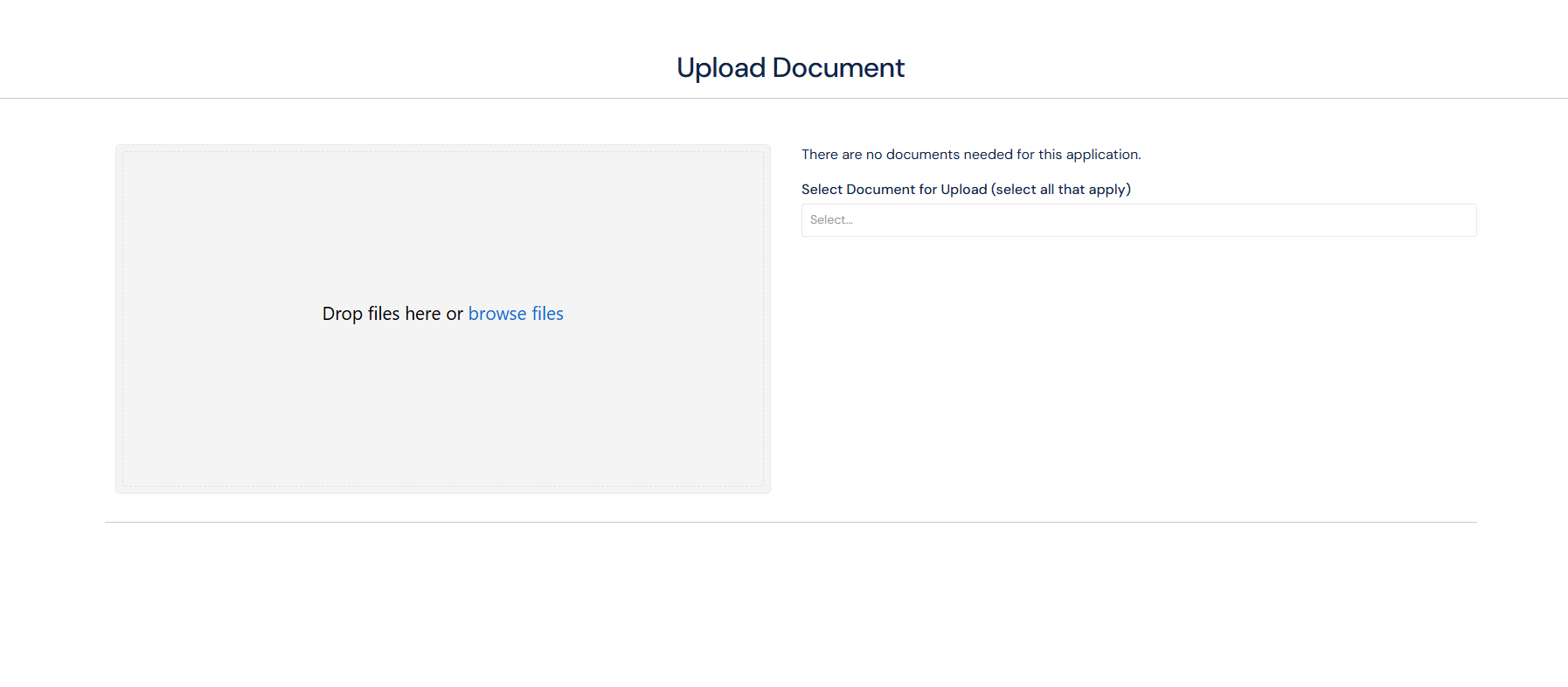
Screenshot: Upload Documents
Viewing an Application
Applicants can view submitted applications in a read-only format.
The View page allows applicants to:
Review all submitted information
Navigate through form sections
Access related tabs such as documents and comments
Unlike internal users, applicants cannot modify submitted form data.
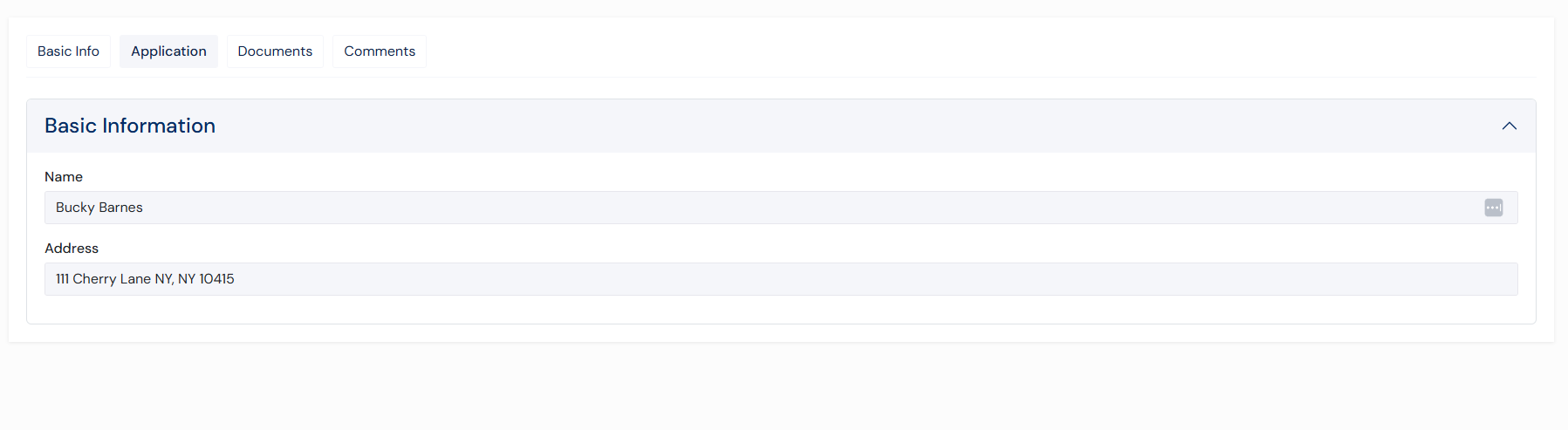
Screenshot: View Application
Comments
The Comments tab allows applicants to communicate and provide additional context related to their application. Applicants can add comments and view any comments provided by the application reviewer, enabling two-way communication throughout the review process. Applicants can add comments within editing the application and viewing a completed application.
Applicants can:
Add new comments
View existing comments
Edit their comments
This feature supports communication between applicants and internal reviewers.
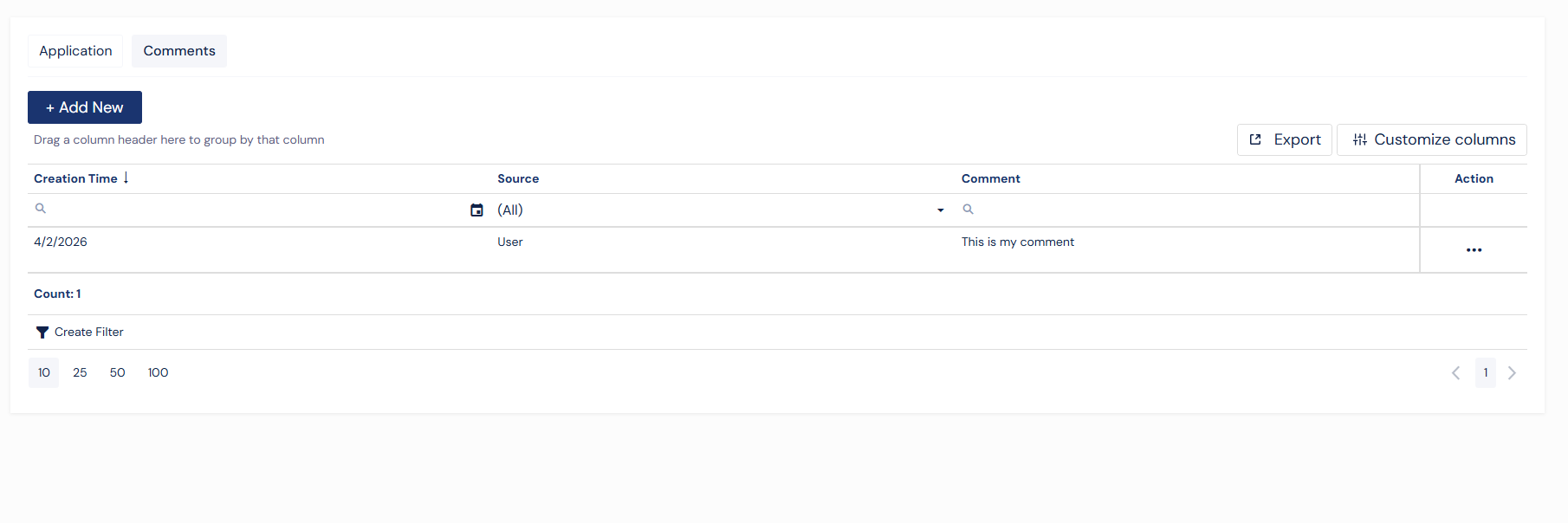
Screenshot: Comments Tab
Withdrawing an Application
Applicants can withdraw an application at any time before final processing.
Selecting Withdraw will:
Remove the application from active processing
Update the application status accordingly
If applicants want to start over they have to start a new application from the form.
Key Differences from Internal Users
Applicants have a simplified experience compared to internal users.
Applicants can:
Start and complete applications
Save progress and return later
Submit applications
Upload required documents
Add comments
Withdraw applications
Applicants cannot:
Edit applications after submission
Access or view internal sections
Verify sections
Trigger custom actions
Approve or decline applications
Invite other users
Best Practices
Complete all required fields before submitting
Save progress frequently when working on longer applications
Upload required documents promptly after submission
Review all information carefully before submitting
Use comments to provide additional context if needed